Context#
Sometimes, at the beginning of a data project, the data available to us may be insufficient or even non-existent. You may try to find a dataset in publicly available data sources, but it happens that you can not find what you are looking for. This is where web scraping comes into play, a technique to automate data collection on the web to build your own dataset.
What is web scraping?#
Web scraping consists in collecting data on a website in an automated way. It could be text, images, or data of any type.
To do this, we write a script that downloads the content of a page (usually in HTML format) and then selects the desired elements from it. That is what we will teach you in this article.
Use case — Bike images#
Let’s say we want to collect bike images of various brands to later build a bike brands classification model. Such a dataset does not seem to exist, that is why we decide to create one.
Ads websites can be an interesting source of data in this case. For example, Kijiji is a Canadian one where ads are classified according to categories.
The action plan is therefore to search each of the targeted brands in the “road bike” category.
Set up the search URL#
First, we locate the URL of the page to scrape by following these steps:
- Browse to Kijiji
- Set the category to “Bikes > Road”
- Set the text query to some bike brand like “specialized”
- Set the location to “Canada” to perform a search over the whole website
As a result, the search prompt should look like this:

After that the URL will be set to:
https://www.kijiji.ca/b-road-bike/canada/specialized/k0c648l0?rb=true
Notice that the search parameters we specified are contained in it.
A search often leads to several pages of results. If we browse to the next page we will get this URL containing the page number:
https://www.kijiji.ca/b-road-bike/canada/specialized/page-2/k0c648l0?rb=true
Later on, this will be useful in the script to navigate through the results pages.
Get image links#
Now that we have the URLs of the desired content, we just need to locate the images in the code of the page. To do this, right-click on an ad image and click “Inspect”. The following sidebar will open:
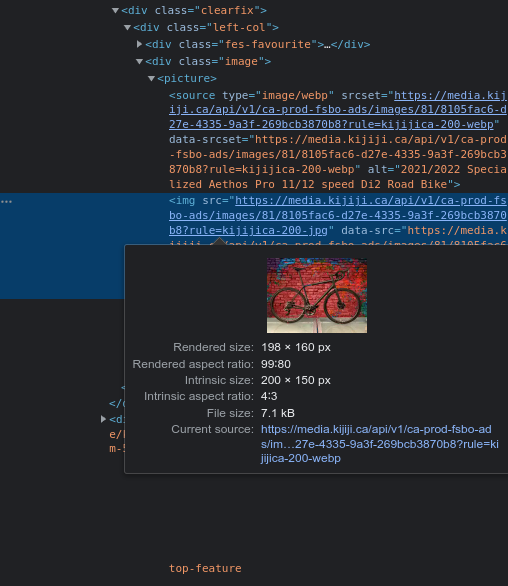
We have located an image link! You understand that doing this task manually to collect all the image links would be tedious. That is why web scraping uses scripts to automate this task.
To localize the images formally, we have to find the “selector”. Right-click on the previous highlighted block and click “Copy > Copy selector”.
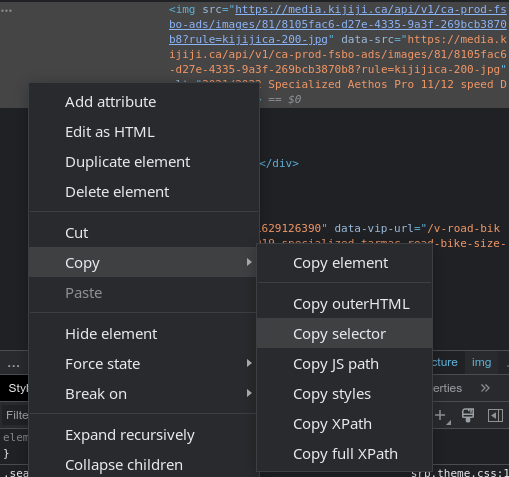
You will end up with something like this in your clipboard:
#mainPageContent > div.layout-3 > div.col-2 > main > div:nth-child(2) > div:nth-child(4) > div > div.left-col > div.image > picture > img
This selector indicates the precise location of the image link within the blocks of the HTML code. The final part in bold is the one of interest for the next step.
Script the collection of image links#
We finally have all the pieces to write the script. We will be using Python with the following libraries:
- Requests to download a web page
- BeautifulSoup to parse the returned page
- Pandas to save the results in a CSV file
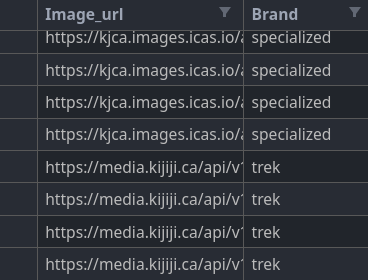
In our scenario, let’s say we want to collect images for the brands “giant”, “specialized” and “trek”. So we have a main loop going through the brands and then another through the pages. We download each page thanks to Requests and then parse it with BeautifulSoup. Finally, we can extract image links and save them in a Pandas data frame.
 1import logging
 2import re
 3import time
 4
 5import pandas as pd
 6import requests
 7from bs4 import BeautifulSoup
 8
 9# Enable logging, comment out to disable
10logging.basicConfig(level=logging.INFO)
11
12# Set the URL to scrape
13base_url = "https://www.kijiji.ca/"
14query = "b-road-bike/canada/"
15brands = ["giant", "specialized", "trek"]
16suffix = "/k0c648l0?rb=true"
17
18# Initialize the dataframe
19data = {"image_url": [], "brand": []}
20
21for brand in brands:
22    logging.info(f"Searching results for brand '{brand}' ({brands.index(brand) + 1}/{len(brands)})")
23
24    next_page = True
25    page_nb = 1
26
27    while next_page:
28        # Download the page
29        res = requests.get(base_url + query + brand + f"/page-{page_nb}" + suffix)
30        res.raise_for_status()
31
32        # Parse the page
33        soup = BeautifulSoup(res.text, "html.parser")
34        images = soup.select("div.image > picture > img")
35
36        if images:
37            for img in images:
38                # Extract the image URL
39                data["image_url"].append(img.attrs["data-src"].replace("200-jpg", "1600-jpg"))
40                data["brand"].append(brand)
41
42            # Get the number of results
43            str_results = soup.select_one("div.resultsHeadingContainer-781502691 > span")
44            nb_results = re.search(r"([0-9]+) of ([0-9]+)", str_results.text)
45            nb_seen = nb_results[1]
46            nb_total = nb_results[2]
47
48            logging.info(f"Processed {nb_seen}/{nb_total} images (page {page_nb})")
49
50            if nb_seen == nb_total:
51                # Last page
52                next_page = False
53            else:
54                page_nb += 1
55        else:
56            logging.info(f"Failed to process page {page_nb}, retrying...")
57            time.sleep(3)
58
59# Save the dataframe to a CSV file
60df = pd.DataFrame(data)
61df.to_csv("bike_brands_dataset_kijiji.csv", index=False)
Let’s see a few details about the implementation. You may notice the use of .replace("200-jpg", "1600-jpg") on the image link at line number 39. This is because Kijiji images are stored in different resolutions on their servers and we choose to take a higher one. On line 43, the selector div.resultsHeadingContainer-781502691 > span is used to get the number of results displayed up to the current page compared to the total number of results (it was obtained in the same way as above). A regex extracts those numbers on the next line. This allows us to know when we reach the last page.
Download the images#
The final step is to download the images from the collected links. For that, we use a simple script relying once again on Pandas and Requests. We use Tqdm to display the progression bar.
 1from pathlib import Path
 2
 3import pandas as pd
 4import requests
 5from tqdm import tqdm
 6
 7
 8def download_image(row):
 9    index = row.name
10    img = row.image_url
11    brand = row.brand
12
13    Path(f"images/{brand}").mkdir(parents=True, exist_ok=True)
14
15    path = f"images/{brand}/{index}.jpg"
16    if not Path(path).is_file():
17        bin_img = requests.get(img).content
18        with open(path, "wb") as file:
19            file.write(bin_img)
20
21
22df = pd.read_csv("bike_brands_dataset_kijiji.csv")
23
24tqdm.pandas(desc="Downloading images")
25df.progress_apply(download_image, axis=1)
The script may take some time to run. In the end, you will get an images folder containing a folder for each brand! We can then analyze, clean, or preprocess the images. To collect even more data we can repeat this operation on other websites.

Conclusion#
In this article, we saw how to perform web scraping using Python to build our dataset. Web scraping is a powerful tool with a wide range of applications. Knowing how to get data is a valuable skill as a data practitioner.
I hope this article was useful and that you learned something from it. Thank you for reading!
Inspiration: https://medium.com/@kaineblack/web-scraping-kijiji-ads-with-python-ef81a49e0e9e
To go further: https://realpython.com/beautiful-soup-web-scraper-python/